Many people start a home inventory and never finish it. Typing every thing by hand takes a long time, and an empty screen doesn't say where to begin. Until today a new AllKeep Inventory account opened on a card that said "Your inventory is empty" and suggested a photo of one thing.
Now the web app starts with one room.
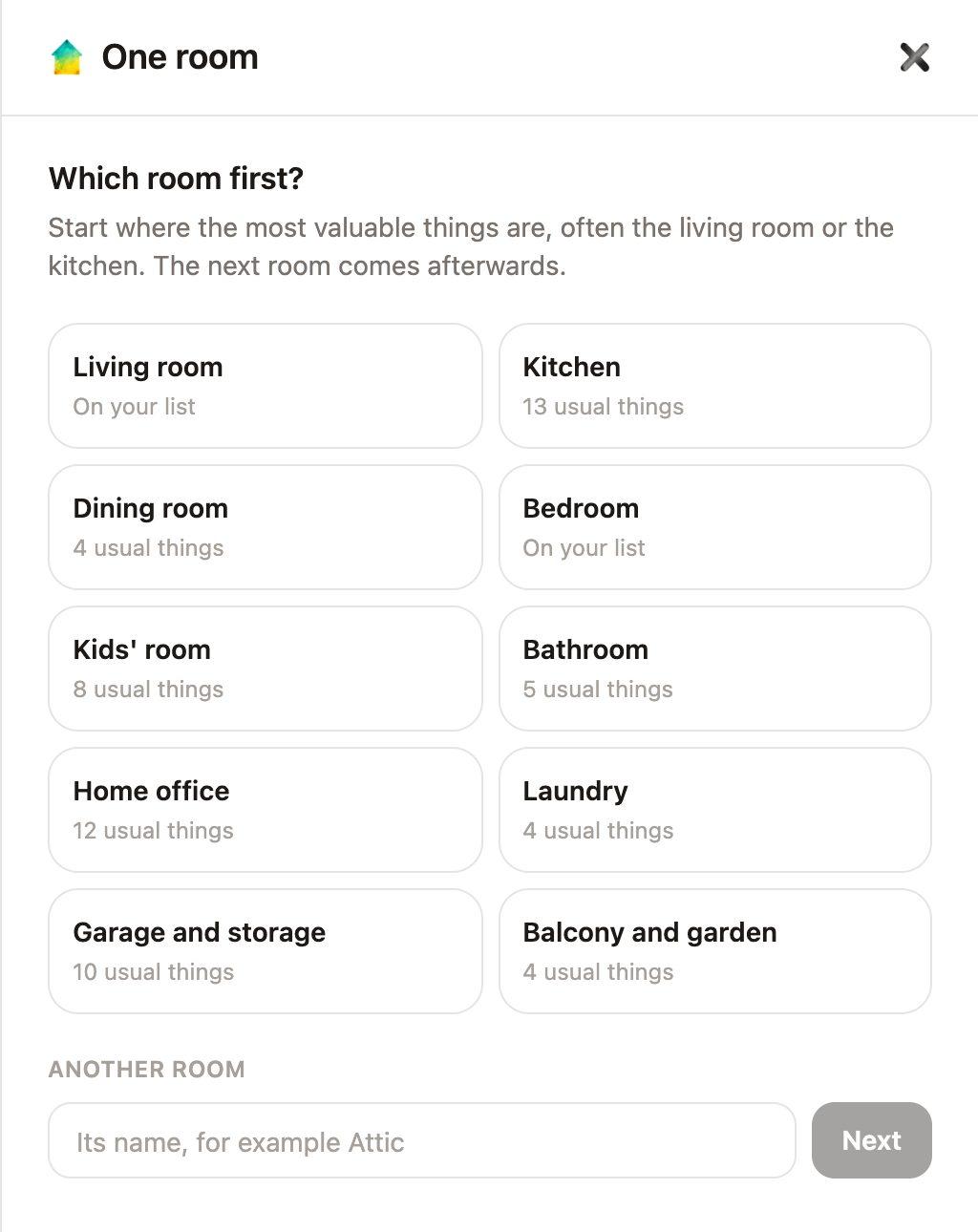
Pick a room
Choose one of ten rooms, from the living room to the garage, or type the name of another. A room you already have is marked "On your list", and the new things go into it.
Tap what's in it
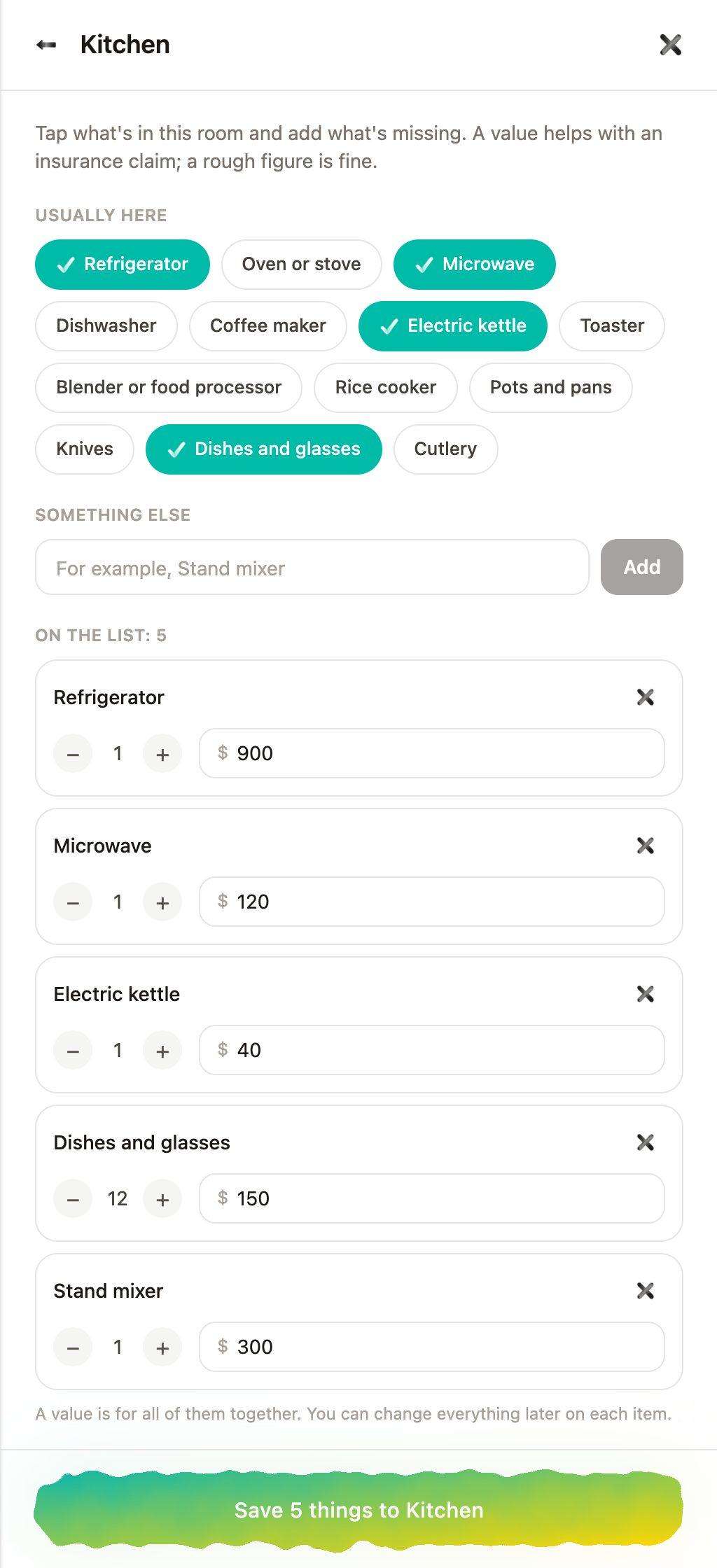
Each room comes with the things most homes have there: 13 for a kitchen, 12 for a living room. Tap the ones you own, add anything that's missing, and give each a count and a rough value. Write the value the way you usually do, 1,200 or 1.200 or 1 200, with a currency sign or without. One button saves the whole room.
A photo of each, then the report
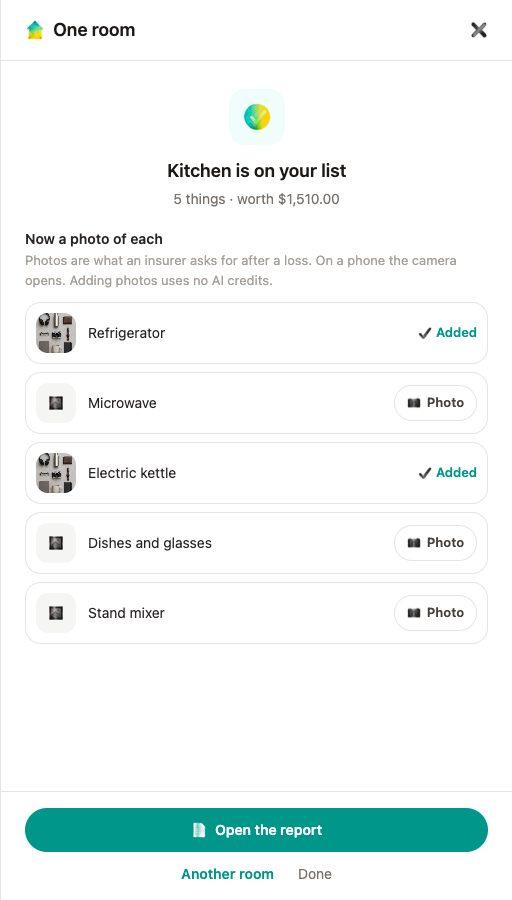
After saving, each new thing has a Photo button; on a phone it opens the camera. Photos use no AI credits: on my test account the balance was the same before and after two photos. Then open the report to print the room with its values and photos, or save it as a PDF for an insurer, as in the report post.
One more fix: signing in or up on inventory.allkeep.org used to end on the site's profile page. Now it opens the app, in the language of the page you came from.